Let your dot borrow a computer, and know what Allow hands over
The short version
A ChatGPT dot can test, build and click through work on a second computer while you keep using the first.
One tap on Allow sets that up, and it reaches further than it looks.
The access follows your dot wherever you message it, phone included, and it stays in place until you revoke it. Here’s what you gain, what you hand over and the settings that keep it in check.
Who can use it today. Dots need ChatGPT Pro (for people 18 and older) or Business Premium. They aren’t available in every region, and they’re still rolling out gradually, so access can take several days to reach your account (OpenAI Help Center: Getting started with your dot).
The Nov 9, 2026 news isn’t a launch either. It adds one thing to dots that already existed, the option to connect more than one of your own computers to the same dot (OpenAI Developers on X: multiple computers).
Quick terms: a dot is an always-on agent inside ChatGPT. Unlike a regular ChatGPT conversation, it has its own cloud computer, can take on ongoing work and keeps making progress between conversations, works across the apps you connect and remembers context.
A thread is a separate piece of work your dot starts and runs on one computer. A connected computer is one of your own machines that you’ve allowed your dot to use. Custom rules tell your dot which actions it can take without asking you first.
1. What a borrowed computer gets you
An agent that needs your laptop usually takes over your laptop. Your cursor moves, your windows jump, and you wait.
A dot starts from a different place. It has its own cloud computer and browser, and that work can carry on while your devices are off. Use it for research, documents, data analysis or software work (ChatGPT Learn: Connect computers and apps to your dot).
Some jobs need your own machine, though. The files are local, the app only runs on your desktop, or a website blocks cloud browsers. Since Nov 9 you can connect several of your own computers to the same dot and choose which one it uses for each task.
OpenAI’s pitch is that it builds and tests your app on a dedicated machine while you keep coding on your laptop (OpenAI Developers on X: multiple computers).
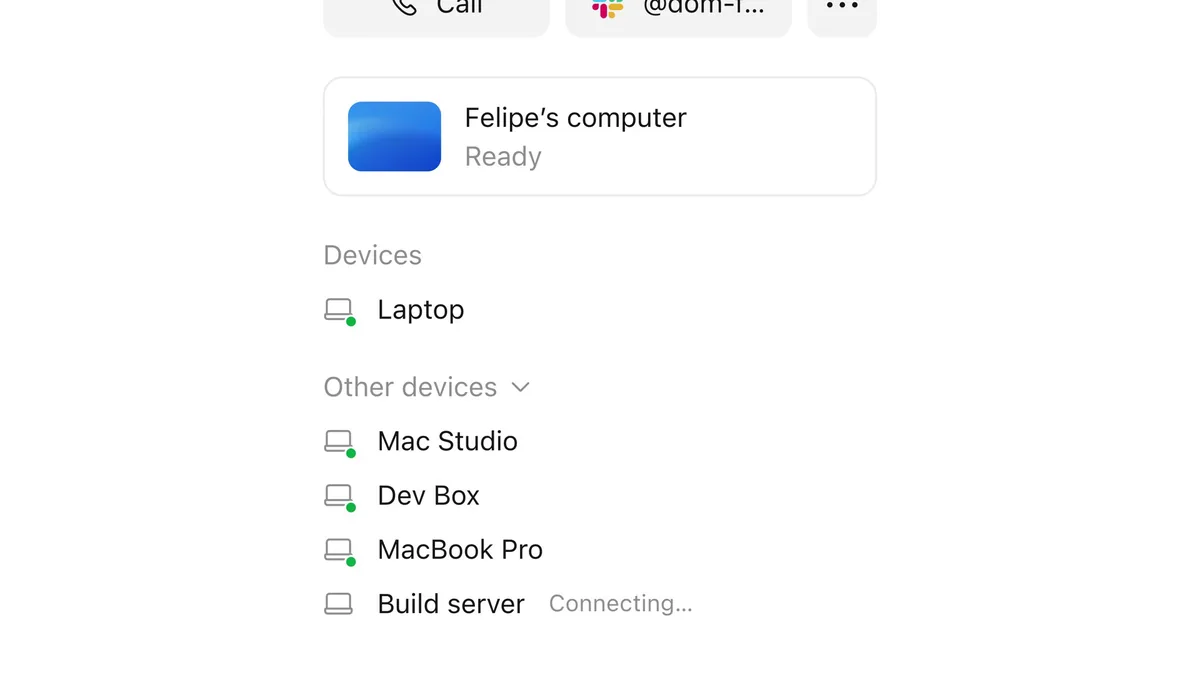
OpenAI’s own examples are all about keeping your main machine clear (OpenAI Developers on X: things to try; OpenAI Developer Community: connect multiple computers to the same dot):
- Ask your dot to test a change in Xcode on a second Mac and send you screenshots of how it looks.
- Run the same test on your laptop and on a machine with an older SDK, then compare the results without changing your everyday setup.
- Have it click through a flow on a second computer and capture where things break, while you work on the fix.
2. How to connect one
Local computer access is optional and starts turned off. You switch it on from the ChatGPT desktop app on the computer you want to share, not from a web browser (OpenAI Help Center: Getting started with your dot).
The steps (ChatGPT Learn: Connect computers and apps to your dot):
- Open your dot’s profile in the ChatGPT app on that computer.
- Under Computers, find the computer you’re using and select Allow.
- Review the confirmation and select Allow access.
Repeat that on each extra computer. Each thread uses one computer at a time, so for independent jobs ask your dot to start a separate thread on each computer. Keep the computer online with the ChatGPT app open while your dot uses it.
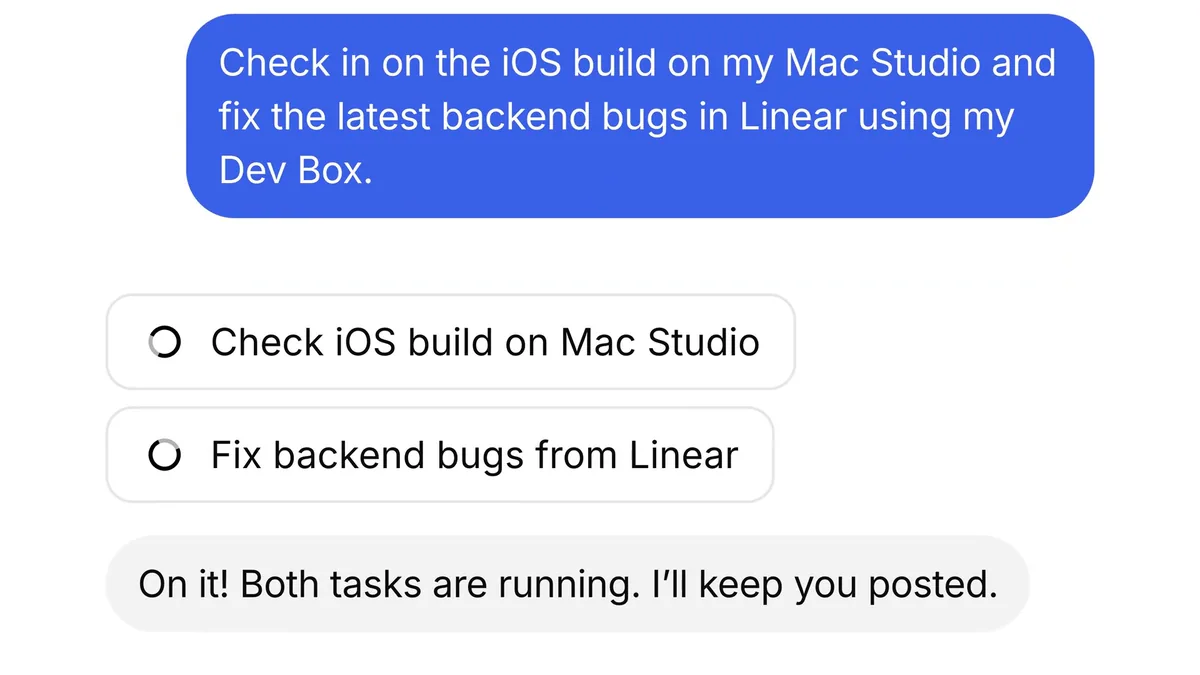
In OpenAI’s demo, one message sends two jobs to two machines. It checks an iOS build on a Mac Studio and fixes backend bugs on a Dev Box, and both run at once.
3. What one Allow hands over
This is the part worth slowing down for. Allow is one tap, and here is what it opens.
“Access to your computer applies wherever you message the same dot, including from your phone.” ChatGPT Learn
Once you confirm, your dot can reach that computer’s local files, code and apps from any of its messaging channels (OpenAI Help Center: Getting started with your dot). It can also do the following (ChatGPT Learn: Connect computers and apps to your dot):
- Create local Work or Codex tasks and continue existing local Codex tasks.
- Use local skills, which need a connected computer.
- Try your local browser when a website blocks its cloud browser. That may start a separate local task, and the cloud browser’s session doesn’t carry over.
A few things do not open the door. Connecting a computer to Codex or turning on Work Sync doesn’t give your dot access on its own, and messaging your dot in Slack doesn’t connect your inbox (ChatGPT Learn: Connect computers and apps to your dot).
Apps work a little differently from computers. A connected app lets your dot review that information on its own and form memories from it, even when you haven’t asked about it.
Disconnecting the app later doesn’t delete what your dot already learned, and only deleting the dot removes its own saved memories.
Your existing app permissions still apply, so you can let it read email without letting it send email (OpenAI Help Center: Getting started with your dot; ChatGPT Learn: Connect computers and apps to your dot).
4. Offline is not Revoke
Closing your laptop feels like ending the arrangement. It isn’t.
- Offline means the computer is unavailable right now. The saved access stays, and work that needs that computer simply can’t continue until it’s back.
- Revoke access removes your dot’s access to that computer. OpenAI’s admin guide calls that state Disconnected, which is different from Offline.
Both points come from OpenAI’s own docs (ChatGPT Learn: Connect computers and apps to your dot; ChatGPT Learn: Local computer access for Work Cloud and dots). Two more details matter when you change your mind mid-task.
A running local task doesn’t move to the cloud on its own. And pausing your dot doesn’t stop separate Work or Codex tasks or independently scheduled tasks, so review those separately (OpenAI Help Center: Getting started with your dot).
5. Custom rules decide what it does alone
Access says what your dot can reach. Custom rules say what it may do there without checking with you. On mobile they live under Customize → Custom rules.
Describe the action a rule covers, then pick one of four behaviors (OpenAI Help Center: Getting started with your dot):
- Take action without asking
- Take action if pre-approved (pre-approved means you asked for that action in your prompt)
- Ask before taking action
- Hand off to you
Three limits keep this honest. Asking for a draft doesn’t authorize sending it. Custom rules don’t grant app or computer access, and they don’t override built-in safeguards, so some steps (such as changing a password) are always yours to do.
And OpenAI says your dot can make mistakes, including when following your rules, so check important details before you rely on a result (OpenAI Help Center: Getting started with your dot).
6. At work, Nov 18 is the date
If your ChatGPT comes through an Enterprise, Edu or Healthcare workspace, the timeline is different. Dots are generally available to eligible workspaces, and an admin preview runs from Nov 4 through Nov 18, 2026.
Starting Nov 18, dots become available by default unless your admin opts out, and billing begins for all enabled dots. Work a dot hands to ChatGPT Work or Codex threads is billed separately at standard rates.
Each member can create one personal dot (OpenAI Help Center: Getting started with your dot).
Local computer access is a separate admin switch. A workspace owner turns on Allow local computer access under Use dots in the Admin Console, and members need an updated desktop app.
During the Enterprise beta, dots don’t support data residency or inference residency (ChatGPT Learn: Local computer access for Work Cloud and dots). If you’re the admin, decide before Nov 18 rather than after the first bill.
Try this next
Try this
- Set your custom rules first. Anything that sends, buys or deletes should ask before taking action.
- Connect a second computer from the ChatGPT desktop app on that machine.
- Send one message that names a computer for each job, like OpenAI’s demo below.
- When the work is done, select Revoke access instead of just letting the computer go offline.
Check in on the iOS build on my Mac Studio and fix the latest backend bugs in Linear using my Dev Box.
Chef’s pick: treat Allow like handing someone a house key, not a guest pass. Connect the spare machine, set the rules before the first job, and revoke when you’re done.