Run a crew of Grok Build agents without losing track of them
The short version
Running three coding agents at once only pays off if you can see them, keep them apart and pick them back up.
Grok Build’s changelog from late September to late October fills in exactly that.
One dashboard shows every session with blockers on top, worktrees give each agent its own checkout, sessions reopen by title, headless runs wait for background work before they exit, and the macOS sandbox now runs on the system Seatbelt.
Auto mode, folder trust and worktree approvals got stricter or smarter along the way, so a few defaults are worth rechecking.
Grok Build is SpaceXSI’s coding agent, used in a fullscreen terminal app, headlessly in scripts, or inside other apps. Its changelog ships a release every day or two, and most entries are small. Read together, the entries from Sep 26 to Oct 23, 2026 tell one story.
They make it practical to hand separate jobs to several agents at once and come back later without a mess. Below are the five pieces that matter most, with one concrete use for each, then the late-October defaults worth checking.
1. One screen for every agent
The pain with parallel agents is not starting them. It’s noticing which one stopped to ask you something twenty minutes ago.
The Agent Dashboard is a fullscreen list of every session, grouped by state (Needs input, Working, Idle, Inactive, Completed, Failed) and updated live. Open it with /dashboard, Ctrl+\ or grok dashboard from the shell (Grok Build docs: Agent Dashboard).
SpaceXSI first wrote it up in June, and the official Grok account pushed it again on Oct 1 with a demo clip (SpaceXSI: Agent Dashboard in Grok Build; @grok on X: Agent Dashboard).
In that clip, one agent adds rate limiting to a public API while another fixes a flaky checkout test. When the first one needs input, it jumps to the top of the list.
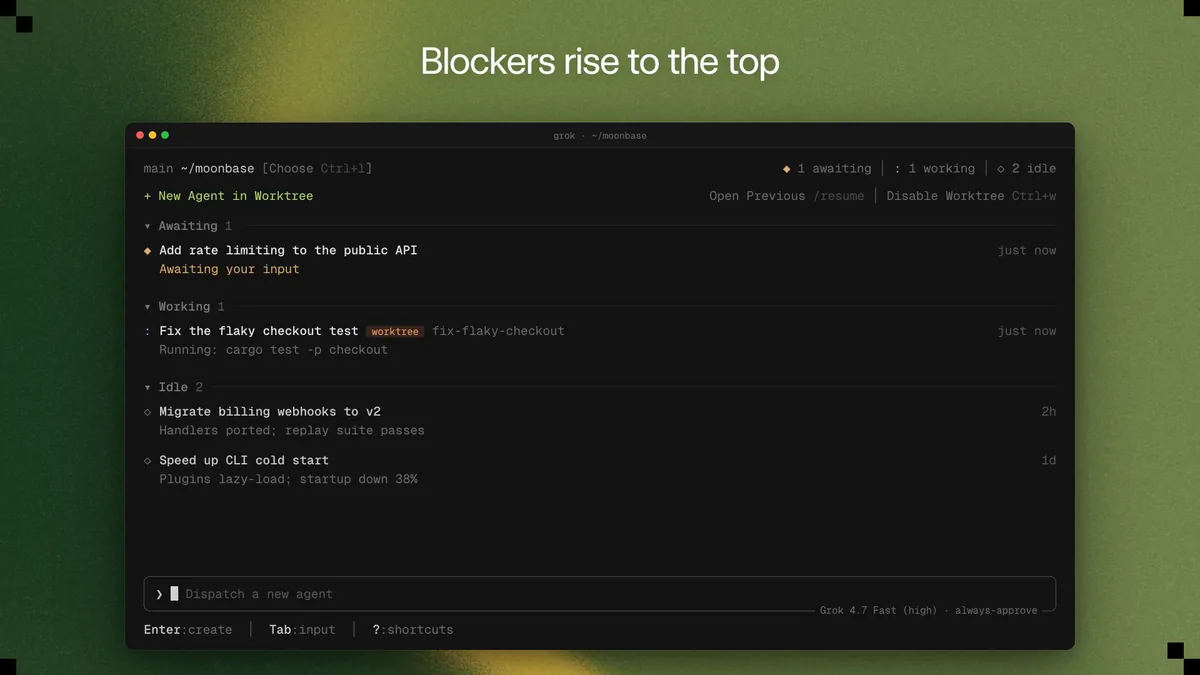
What you can do without leaving the list (Grok Build docs: Agent Dashboard):
- Select a row to peek at the agent’s latest activity and type a reply. An idle agent gets it now, and a busy one queues it.
- Answer permission prompts and questions inline with the number keys.
- Dispatch new work from the input bar at the bottom, and press
Ctrl+Wto start new agents in a git worktree. - Pin, rename, search or stop agents, and group rows by directory when your work spans several repos.
In October the dashboard learned to show a folder header with an agent count when you group by directory, and its folder picker now lists up to 50 recent folders instead of 10 (Grok Build changelog).
2. A checkout per agent
Two agents editing the same files is how you lose an afternoon. A worktree session runs in an isolated copy of your repository, under ~/., starting from your current HEAD including uncommitted changes.
It’s a real git checkout, so you land the work with ordinary git (Grok Build docs: Worktrees).
“A worktree session runs in an isolated copy of your repository, so parallel agents cannot overwrite each other’s files.” Grok Build docs
The concrete use is the dashboard clip again. The flaky-test fix runs in its own worktree named after the job, while the rate-limit work carries on next to it.
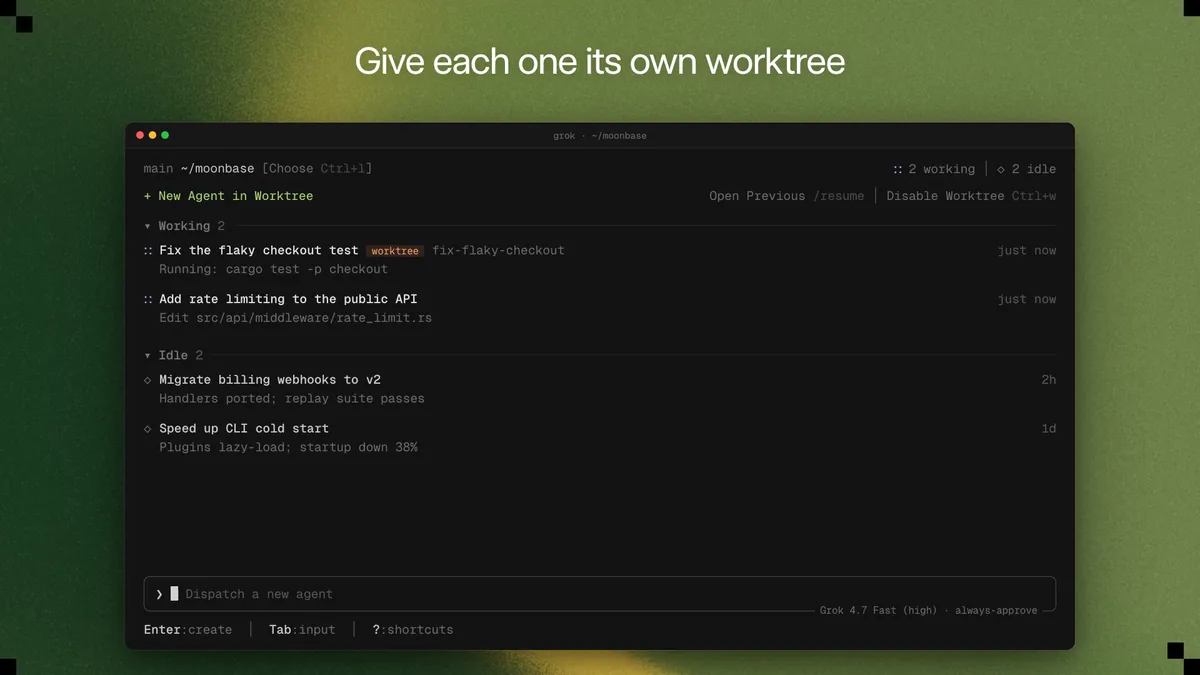
Since late September the worktree tools have grown up (Grok Build changelog):
grok worktree createmakes a managed worktree without opening an interactive session, which suits scripts that set up the checkout first.- Removing a worktree that is in use or has unsaved changes now refuses and exits with an error unless you force it.
- A typed name that’s already taken is refused instead of getting a numbered suffix.
- Create and fork now list any files that couldn’t be copied, and fail cleanly when tracked files can’t be copied or the disk is full.
Worktrees stay until you remove them. grok worktree gc --max-age 7d clears idle ones that no running process is using (Grok Build docs: Worktrees).
3. Find yesterday’s session by name
Session IDs are fine for machines and useless at 9 a.m. Grok Build saves every conversation automatically, and you can rename the current one with /rename (Grok Build docs: Sessions). Through October, resume learned to work from that title (Grok Build changelog):
/resumetakes an ID or a title and opens the session directly when exactly one matches.grok --resumewith a title lists matching sessions newest first and suggests similar titles when nothing matches.- Titles match whatever separates the words, so
fix-login-bugfinds “Fix login bug”, and words can come in any order. - Search now reaches sessions in other folders, tolerates typos, and matches the commands, file paths and replies inside a session.
- On the dashboard,
/resumelists sessions from every folder, with the current folder and its checkouts first.
The use is simple. Name the session after the task before you stop for the day, and the next morning a few words of that name bring it back.
4. Scripts that wait for the background work
Headless mode (grok -p) runs one prompt for scripts, bots and CI, with plain, JSON or streaming-JSON output (Grok Build docs: Headless and scripting). The weak spot was background work.
An agent could start a long command or subagent and the script could exit before it finished.
Three October changes close that gap (Grok Build changelog):
- Headless runs wait for background goals to finish and report their outcome.
- They also wait for the follow-up turn a finished background task starts, and a
--background-wait-timeoutthat stops pending work now exits with an error instead of success. - Runs exit when their work is done instead of hanging after a background task or subagent finishes.
The error exit is the part that matters for CI. A job that gave up on unfinished work no longer reports a pass.
Inside an interactive session, the same machinery powers /loop, which reruns a prompt on an interval (the docs example checks the test suite every five minutes), and monitors that turn each line a script prints into a notification (Grok Build docs: Background tasks).
5. A sandbox for repos you don’t trust
Permissions decide whether a tool call runs. The sandbox limits what an approved call can read, write and reach on the network.
It’s off by default, uses Landlock on Linux, and since late September uses the system Seatbelt (sandbox-exec) on macOS (Grok Build docs: Sandbox; Grok Build changelog).
The docs map profiles to jobs. workspace limits writes to the current folder, ~/.grok/ and temp for normal development. read-only suits code review and audits. strict is the one for untrusted repositories, limiting reads to the current folder and system paths (Grok Build docs: Sandbox).
Read the limits before you rely on it:
- Blocking network access for child processes is enforced on Linux only. On macOS it does nothing for
read-onlyandstrict. - Built-in profiles don’t permanently protect paths such as
~/.ssh. Add a customdenylist for those. - Model API calls and web tools aren’t blocked by the child-network setting.
- When a profile doesn’t allow creating worktrees, worktree commands now refuse up front and the worktree options are hidden (Grok Build changelog).
6. What late October changed
The releases from Oct 17 to Oct 23 are mostly polish, with four changes in defaults worth knowing (Grok Build changelog):
- Auto mode got stricter. It runs a shell command without review only when every command in it matches an allowlist entry, and anything else asks first.
- Untrusted folders run fewer hooks. Until you trust a folder, only your organization’s managed hooks run. User, project, plugin and agent hooks wait.
- Memory reads a short index. It always uses a concise
MEMORY.mdindex of topic titles and paths, and/memorylists topics by how often Grok reads them. - Worktrees reuse “always allow” answers. They take the main checkout’s saved “always allow” answers, so you aren’t asked again for a tool you already allowed there. Saved “never allow” answers still apply.
Memory is what lets an agent remember that your test suite needs a different command. In SpaceXSI’s memory demo, Grok reads a saved testing note before editing related code and runs the right command without being told again (@grok on X: Memory in Grok Build).
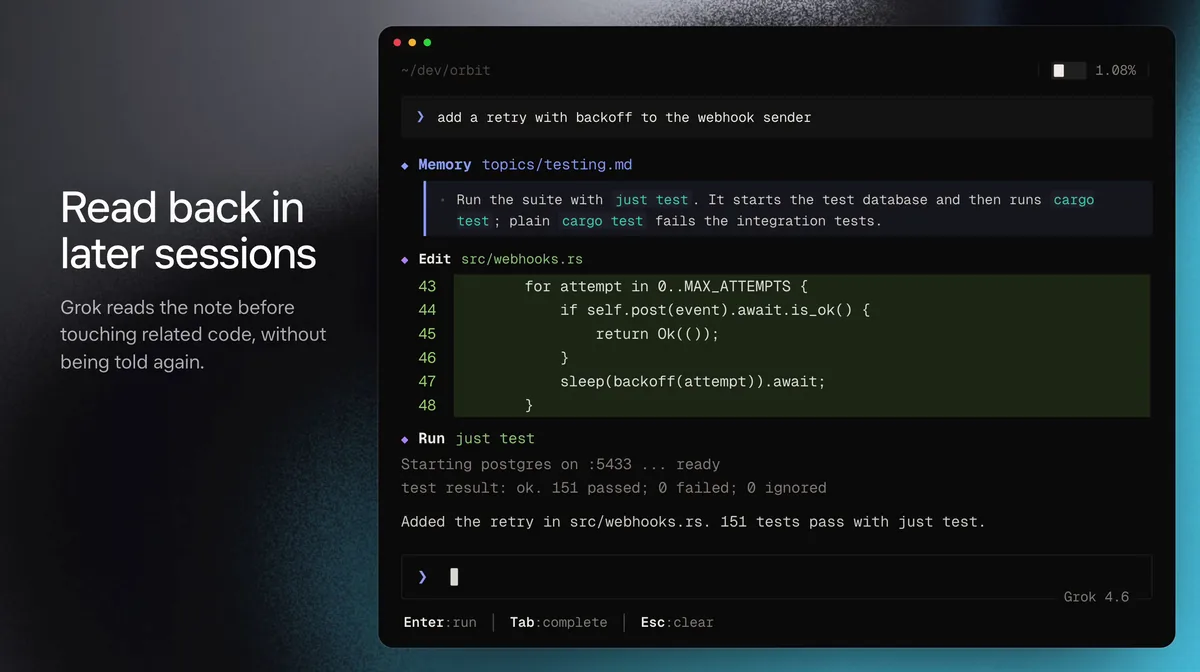
The rest is quality of life. The dashboard groups folders under headers, the welcome menu puts Resume session above New worktree, and vim navigation became one setting.
7. Who should recheck what
| If you… | What changed | What to check |
|---|---|---|
| Run Auto mode on shell commands | Commands outside the allowlist now ask first | Whether your allowlist covers the commands your agents run unattended |
| Rely on project or plugin hooks | They wait until you trust the folder | Trust the folders you work in so those hooks run again |
Run grok -p in CI |
Background work is awaited, and a timeout exits with an error | Whether a job that used to pass now fails on unfinished work |
| Run agents in worktrees | Saved “always allow” answers carry over from the main checkout | Turn off worktree_ if each worktree should ask fresh |
| Sandbox on macOS | Seatbelt backend, and no child-network blocking | Add deny paths and don’t count on network limits on macOS |
Try this next
Try this
- Open the dashboard from any session with
/dashboard. - Press
Ctrl+Wso new agents start in a worktree. - Dispatch two small, separate jobs from the input bar.
- Name each session after its job with
/rename, so/resumefinds it tomorrow.
To start one isolated job straight from the shell, the docs show this form.
grok -w --ref main "fix the flaky test"
Chef’s pick: start with worktrees and the dashboard together, because one keeps agents apart and the other tells you which one is waiting. If you script Grok Build, rerun your CI jobs once and look for the new timeout errors before you trust a green run.