Five jobs you can hand to Grok Bot now
The short version
The chores you keep postponing are the ones Grok Bot now picks up.
Since late September it has learned to build reports that refresh themselves, phone a company for you, sign in without seeing your password, shop and track the order, and serve a whole team as one shared Bot.
Each job still stops for your OK at the risky step, and a couple of them are new enough that the fine print is thin.
Quick terms: a Bot is your AI teammate in Grok Bot, with its own computer in the cloud. A Page is a report, memo or dashboard the Bot builds for you to read. A routine is a job the Bot runs on a schedule or when something happens.
Vault is where your logins, cards and contact info live so the Bot can use them without reading the secret parts. Auto Review is the check that runs before each action and shows you an approval card when it needs your OK.
Grok Bot ships updates every few days, and the official changelog reads like a parts list.
Here are the five changes from the last seven weeks that save the most real time, each with one example taken from SpaceXSI’s own posts, demos and docs. SpaceXSI is the company behind Grok Bot.
1. A report that refreshes itself
Most status reports die the same way. Someone builds a nice one, then nobody rebuilds it on Monday.
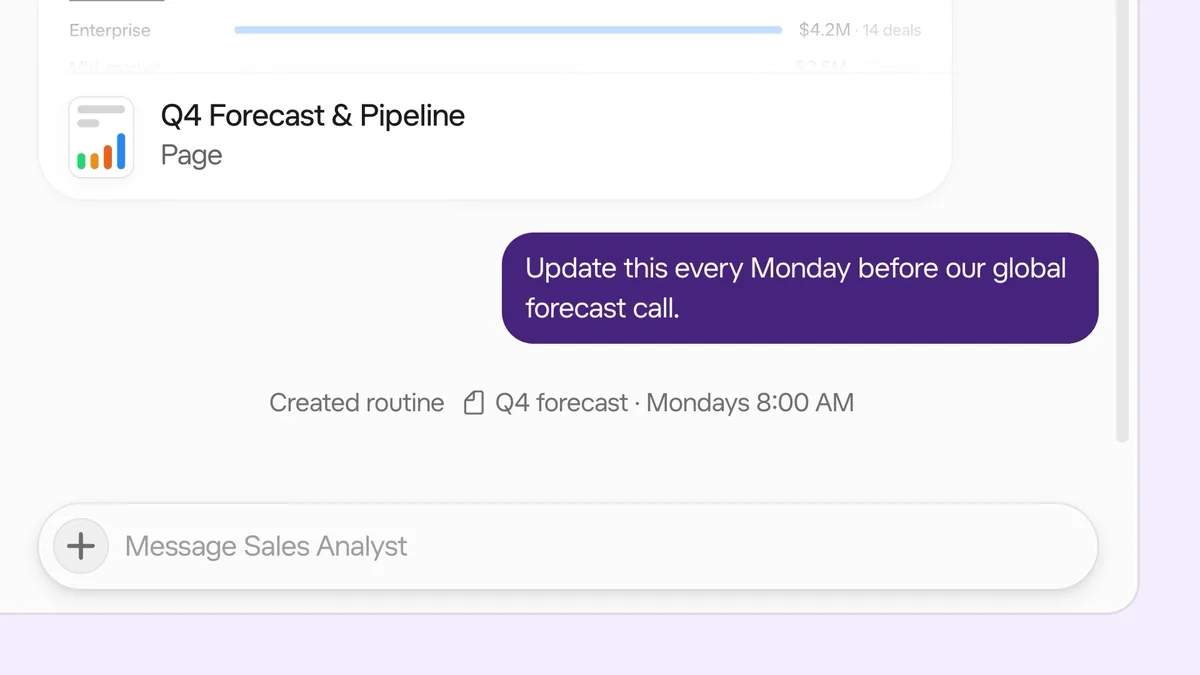
Pages fix the rebuild part. In the official launch clip, someone asks a Sales Analyst Bot to put together a Q4 forecast and pipeline preview.
The Bot returns a Page with the targets, pipeline by segment and by region, and a table of top prospects, and the user shares it with a teammate as a viewer. Then comes the useful line.
The user asks the Bot to update it every Monday before the global forecast call, and the Bot creates a routine that runs Monday mornings (@bot on X: Pages announcement).
The docs fill in the rest (Grok Bot docs: Files and results):
- A Page can hold text, tables, charts and controls like filters and switches, and it lives in the Bot’s Library.
- You can ask a Bot to create or update a Page from a routine. When it updates, the earlier card in the chat says so.
- Filters change what you see, not what the Page holds. Only the Bot changes the Page itself.
- A new Page is private until you share it. A Page shared with anyone who has the link opens without a sign-in, so keep private numbers off that setting.
Pages are rolling out gradually and aren’t available on Enterprise teams yet.
2. The phone call you’ve been dodging
On Nov 4, 2026 the official @bot account posted that Grok Bot can now make phone calls (@bot on X: phone calls). The demo clip is a chore almost everyone has put off.
The Bot notices an internet contract renews in three days and offers to call and cancel. The user says yes, and adds not to accept a discount.
On the call, the support rep offers 10% off for a year, the Bot turns it down, and it reports back that the plan is canceled and the retention offer was declined.
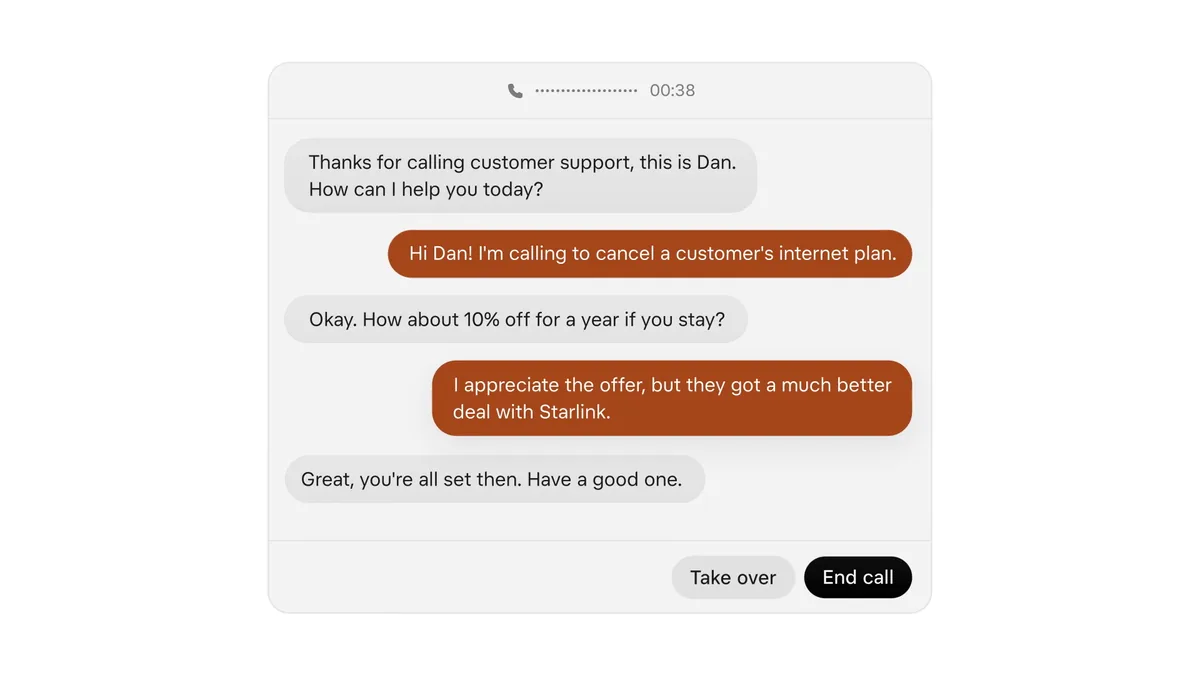
You aren’t locked out of the call. The clip shows a live transcript with Take over and End call buttons. The changelog adds a few details since launch (Grok Bot changelog):
- To pass text into a live call, a card asks Send this to your call? and you can edit the text first.
- A busy or unreachable number now shows No answer.
- If the other person interrupts, the transcript keeps only the part of the Bot’s line they heard.
What’s thin is the fine print. The Grok Bot help docs describe voice chats with your own Bot, and we didn’t find a help page for calls to other people that spells out plans, numbers or languages. Treat the demo as the scope until that page exists.
3. Sign-ins without handing over the password
A Bot that can’t log in can’t do much. The usual fix (pasting a password into chat) is the one you shouldn’t use.
In the Vault demo, someone asks the Bot to pause Google Ads Manager campaigns that are over budget. The Bot says it needs to sign in and opens a secure form instead of asking in chat (@bot on X: Vault announcement).
The form says the password is never shown to the Bot and is only filled in on that site, with a box to save it to the Vault for next time.
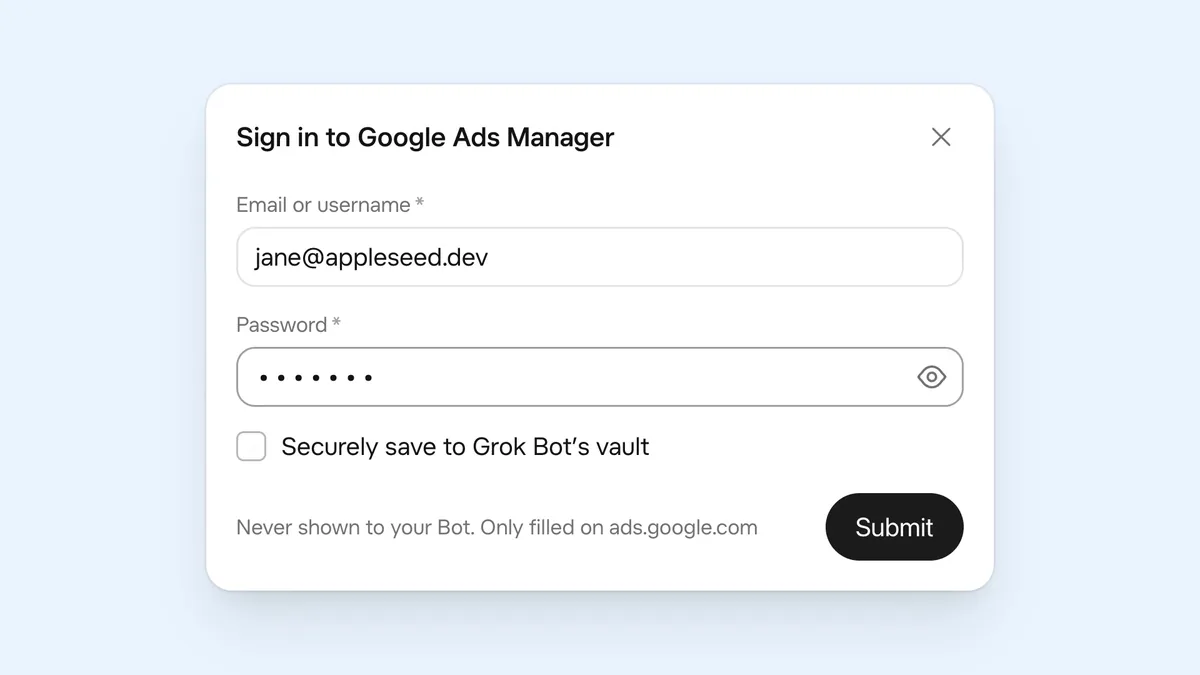
Per the docs, Vault holds logins, cards and contact info under Settings → Vault. A Bot never sees a saved password, card number or security code, though it can see your contact info and which logins you saved.
You can import logins from a CSV export of password managers and browsers such as 1Password, Chrome, Safari, Bitwarden and LastPass (Grok Bot docs: Vault and secure sign-in).
If you’d rather keep passwords in 1Password, that connection lets you approve each login in 1Password (Grok Bot changelog).
Its own inbox closes the loop. A Bot can claim one address at mail.grokbot.com, sign up for services with it, pick up the verification code with your OK, and collect receipts and reports for you.
You get one address for good, and it can’t be renamed or deleted (Grok Bot docs: Use the computer and apps).
4. Shopping, tracking and forgotten subscriptions
The Oct 27 release turned shopping into cards. Results show photos, rating, price and store, and a product page lists in-stock options first and starts an order you approve.
After the order goes through, the Bot tracks it and tells you when it ships or arrives (Grok Bot changelog).
The bigger win may be the money you’re already losing. The same release added three templates (Grok Bot changelog):
- Find unused subscriptions cancels the plans you pick from the ones you still pay for.
- Watch subscription prices checks renewal prices.
- Try it, don’t pay for it starts a trial and cancels it, or reminds you, before it bills.
Early November added more. The Bot can ask for a refund on a subscription charge, and it lists each way to ask before it sends anything. A scheduled reorder of your usual list asks for one approval per order and shows the checkout total.
Gift requests start with the recipient, budget, occasion and deliver-by date, and the Bot won’t order a gift that arrives late (Grok Bot changelog).
One thing to know before you save a card. The changelog says checkout with a saved card waits for you to tap Pay on the order card.
The Vault docs still say a saved card fills in at checkout without asking you each time, and that if you want to approve every payment yourself, you shouldn’t save the card (Grok Bot docs: Vault and secure sign-in).
If that matters to you, follow the stricter of the two.
5. One Bot the whole team can ask
Every team has one person everyone pings. Team Bots let a team publish one Bot that teammates chat with in the app or in Slack, each in their own conversation. A Team Bot brings shared context, plugins, credentials and memories, and each person’s chats stay private.
Team Bots are in public beta on Teams and Enterprise plans, with pre-built Bots for sales, product management, marketing and data analytics (SpaceXSI: Team Bots).
SpaceXSI’s own data team shows what that looks like. Its Data Bot learns from skills the data team writes (metric definitions, experiment rules, chart style) and can query the warehouse, run an analysis and post scheduled updates in Slack.
Product manager Kevin Niparko asks it how people use his product and gets a short headline with a chart. A marketer hands it a Braze campaign ID and asks what recipients did next (SpaceXSI: Giving every team a data scientist with Grok Bot).
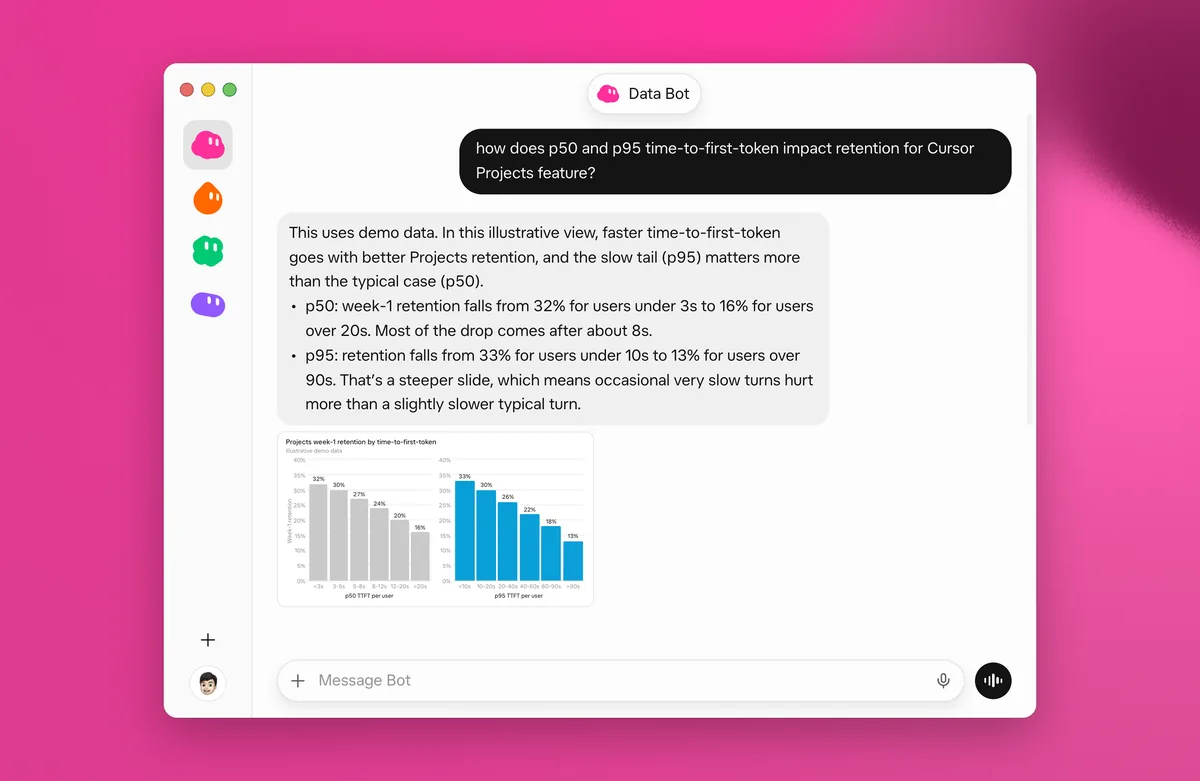
Two details keep it in check. When Data Bot proposes something new to remember, the Bot’s managers approve or reject it before everyone gets it. And SpaceXSI says it still handles the analyses that need more judgment.
Its estimate is that Data Bot handled about 70 hours of work in one recent week that would otherwise have landed on the data science team (SpaceXSI: Giving every team a data scientist with Grok Bot).
“having a data scientist in his pocket” SpaceXSI, on how product manager Kevin Niparko describes Data Bot
6. Where it still stops for you
All five jobs run through the same brake. Auto Review checks each action before the Bot takes it, and when one needs your OK you get an approval card with what it plans to do.
Text from an email or a web page doesn’t count as your request, and if you press Deny the Bot won’t try that action again until you send another message (Grok Bot docs: Approvals, security and privacy).
- Email you ask for in chat goes out once Auto Review allows it. Email from a routine, or from work you didn’t start, waits as a draft until you press Send.
- When a web page hides instructions aimed at AI agents, the Bot tells you it found them and didn’t follow them (Grok Bot changelog).
- A card from your own chat message waits for your answer. One raised by a routine or other background work expires after 30 minutes, and the Bot doesn’t do that action.
Try this next
Try this
- Pick one report you rebuild by hand.
- Ask your Bot for a Page with a short prompt like the one below (it’s an example from the Grok Bot docs).
- When it looks right, ask the Bot to update it on a schedule. That becomes a routine.
- Keep the Page private until you’ve checked what’s on it.
Build a dashboard of signups, trials, and conversions for the last 30 days.
Chef’s pick: start with the Page and the subscription check. Both run on accounts you already have, and both stop for your OK before anything leaves the chat.